
Email migration is a common task for businesses moving from one host to another. Before changes your DNS records to point to the new server, you should first move your emails to the new sever so that they are accessible in the new server as well. Imapsync is the industry-standard tool for this job, and the best part? You can use it completely free through an online interface—no installation or technical knowledge required.
This guide covers an easy way to migrate your emails from Gmail to another email provider, in this case, webmail. This an easy online approach recommended if you are transferring not more than 3GB of data and do not want go through the process of installing and running the command-line tool.
Why Use Imapsync?
Imapsync has been the go-to tool for email migrations since 2001. Here’s why it’s trusted by professionals worldwide:
- Incremental transfers: Stop and restart anytime without creating duplicates
- Preserves everything: Maintains read/unread status, flags, dates, and folder structure
- Gmail-optimized: Built-in handling for Gmail’s unique label system
Free Online Imapsync
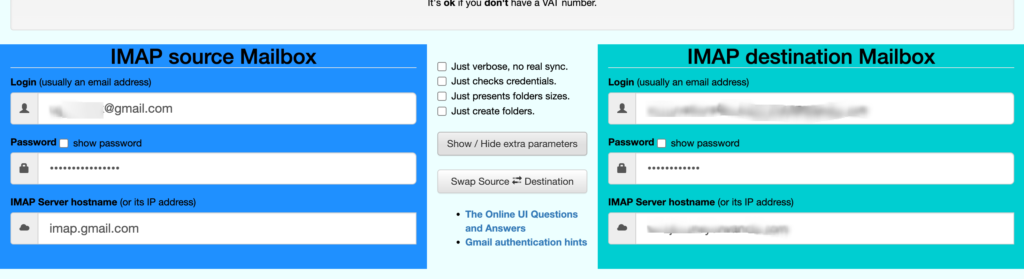
The easiest way to transfer your emails is through the free online imapsync service. It provides a visual interface that guides you through the entire process—no software installation, no command line, no technical expertise needed.
What You Get:
- Completely free for mailboxes under 3GB
- Visual interface with progress tracking
- Works from any browser on any device
- No installation required
Step 1: Prepare Your Gmail Account
Before using the online service, you need to generate a Gmail App Password.
Create an App Password:
- Go to myaccount.google.com
- Click Security in the left menu
- Ensure 2-Step Verification is turned on (required for App Passwords)
- Search for “App Passwords” in the search bar, or find it under the Security section
- Select Mail as the app type
- Click Generate
- Copy the 16-character password that appears
Important: Save this password somewhere safe—you won’t be able to view it again.
Step 2: Gather Your cPanel Webmail Details
You’ll need the following information for your destination account:
- IMAP Server: Usually
mail.yourdomain.com - Email Address: Your full cPanel email (e.g.,
you@yourdomain.com) - Password: Your webmail password
You can find these details in your cPanel under Email Accounts → Connect Devices.
Step 3: Access the Free Online Service
- Open your browser and go to: https://imapsync.lamiral.info/X/
- You’ll see a simple form with two sections: Source (Gmail) and Destination (your webmail)
Step 4: Enter the source and destination details.
In the web interface, enter the details of the source and destination server. The source should be entered on the left side if the form and the destination server details are entered of the right of the form. This includes the following:
| Field | Value |
|---|---|
| IMAP Server | imap.gmail.com |
| Username | Your Gmail address (e.g., yourname@gmail.com) |
| Password | Your 16-character App Password |
Fill in the right side of the form:
| Field | Value |
|---|---|
| IMAP Server | mail.yourdomain.com (your cPanel mail server) |
| Username | Your full email address (e.g., you@yourdomain.com) |
| Password | Your cPanel email password |
Step 5: Start the Transfer
After entering the details above, you can now click on the green Sync or Start button which is found below the form. Then watch the progress as your emails are transferring.
The log interface will show you the Number of folders being processed, Messages transferred, Any errors encountered.
Step 6: Verify the Migration
Once the migration is complete, Log into your webmail account and check that all folders appear as expected. Verify message counts match and also open a few emails to confirm that attachments have been transferred.
After that, you can now change your domain MX records (if fully switching from Gmail)
Do not forget to delete your App password after use
What If My Mailbox Is Larger Than 3GB?
For mailboxes exceeding 3GB, you have two options. You can either
- Purchase imapsync access (€72-144 EUR) for unlimited transfers via the online service
- Use the command-line version
What Imapsync Cannot Transfer
Imapsync handles emails brilliantly, but it cannot migrate:
- Contacts: Export from Gmail as CSV, import to your new system
- Calendar events: Export as ICS file from Google Calendar
- Chat messages: Not accessible via IMAP
Conclusion
Transferring emails from Gmail to cPanel webmail doesn’t have to be complicated. For most users, the free online imapsync service at imapsync.lamiral.info/X/ is the easiest solution—just fill in a form and click start.
For larger mailboxes or bulk migrations, the command-line version gives you complete control with powerful options for filtering, folder mapping, and automation.
Whichever method you choose, imapsync’s incremental sync ensures you never lose data and can always pick up where you left off.


