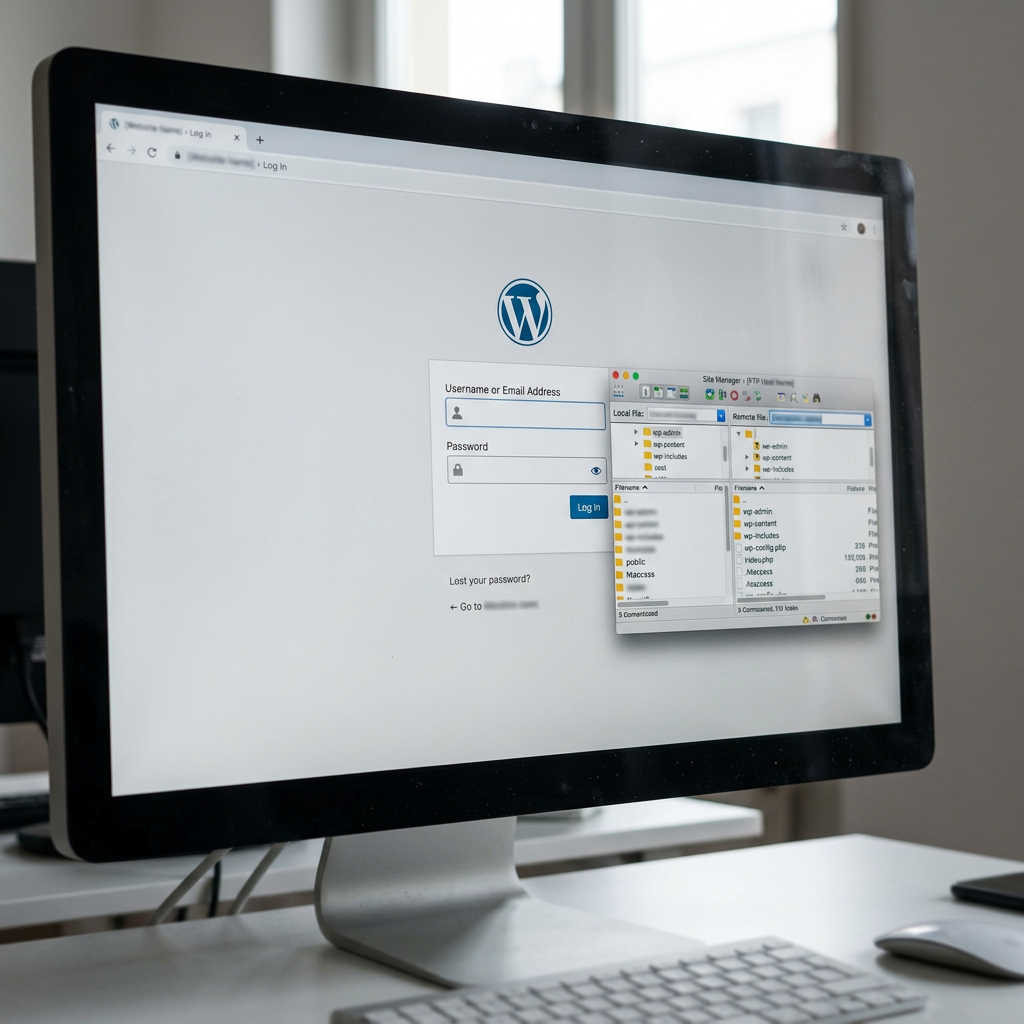
Losing access to your WordPress admin dashboard is more common than you might think, and it can feel incredibly frustrating, especially when a client is waiting. But if you have FTP (File Transfer Protocol) access to the server, you are not stuck. FTP gives you direct access to the site’s files, and from there, you can retrieve everything you need to get back in.
In this guide, I will walk you through a reliable, step-by-step process to regain WordPress admin access using nothing but FTP credentials. No guesswork, no risky plugins, just clean, direct methods that any developer or technically-minded site owner can follow.
If you prefer a video, you can watch this guide on youtube.
Scenarios Where This Can Work
- You created the website months or years back and have simply forgotten the admin username and password.
- You remember the login name but the admin email was set to an old address you no longer have access to, making password reset emails useless.
- A developer or agency managed the site and has since left, taking login credentials with them. The host only handed you FTP details.
- The site’s email configuration is broken, so the “Forgot Password” link never arrives — even if your email address is correct.
- A security plugin or misconfigured access-control plugin is blocking your login, and you cannot get into wp-admin to fix it.
- Your host or client handed over FTP/SFTP credentials as the only means of server access, with no cPanel or control panel login provided.
- The site was migrated from one server to another and the credentials stored in the database no longer match what you have on record.
What You Need Before You Start
- An FTP client — FileZilla is free and works well on Windows, Mac, and Linux.
- The FTP hostname, username, and password provided by your host.
- The site’s public URL (you will need it to query the REST API).
Step 1: Find Your User ID via the WordPress REST API
Before touching the database, the quickest way to identify the correct admin user is through the WordPress REST API — and you do not need to be logged in to use it for this.
Open a browser and visit:
GET https://yoursite.com/wp-json/wp/v2/usersWordPress will return a JSON list of publicly visible users on the site. Look through the results for the administrator account. The response will look something like this:
[
  {
    "id": 1,
    "name": "Chris",
    "slug": "chris",
    "link": "https://yoursite.com/author/chris/",
    "avatar_urls": { ... }
  },
  {
    "id": 3,
    "name": "Site Admin",
    "slug": "admin",
    ...
  }
]
Take note of the id field. It is your WordPress User ID. You will use it in the next steps.
Note: WordPress only exposes users with published posts by default.
Step 2 – Reset via a PHP Script Over FTP
Create a file locally called reset-pass.php (or any filename of your choosing) and add this content:
<?php
require( 'wp-load.php' ); //Load WP environment

// Replace 1 with the User ID you identified in Step 1 above
wp_set_password( 'YourNewStrongPassword123!', 1 );

echo '<p>Password has been reset successfully. Delete this file now.</p>';
?>
Note: wp_set_password is a WordPress function that updates a user’s password with a new hashed one. Check out the official documentation page for more details and usage.
Upload the file to the WordPress root (same folder as wp-config.php) via FTP. Then visit the file in your browser:
https://yoursite.com/reset-pass.php
You will see a success message. Delete the file immediately via FTP — leaving it on the server is a serious security risk.
Delete the File Immediately
Anyone who knows or discovers the filename can reset your admin password. Remove reset-pass.php from the server right after running it.
What to do after regaining access
Once you are back inside the WordPress dashboard, take a few important housekeeping steps:
- Update the admin password to something strong and save it in a password manager
- Update the admin email under Settings → General to a working, accessible email address.
- Set up Two-Factor Authentication using a plugin like WP 2FA or Wordfence Login Security to prevent future lockouts.
- Store credentials securely and document access details for the site (FTP, WP admin, hosting panel) in a secure note shared only with authorised people.
- Check for unauthorised admin users under Users → All Users — if the lockout was security-related, there may be rogue accounts added by a bad actor.


